
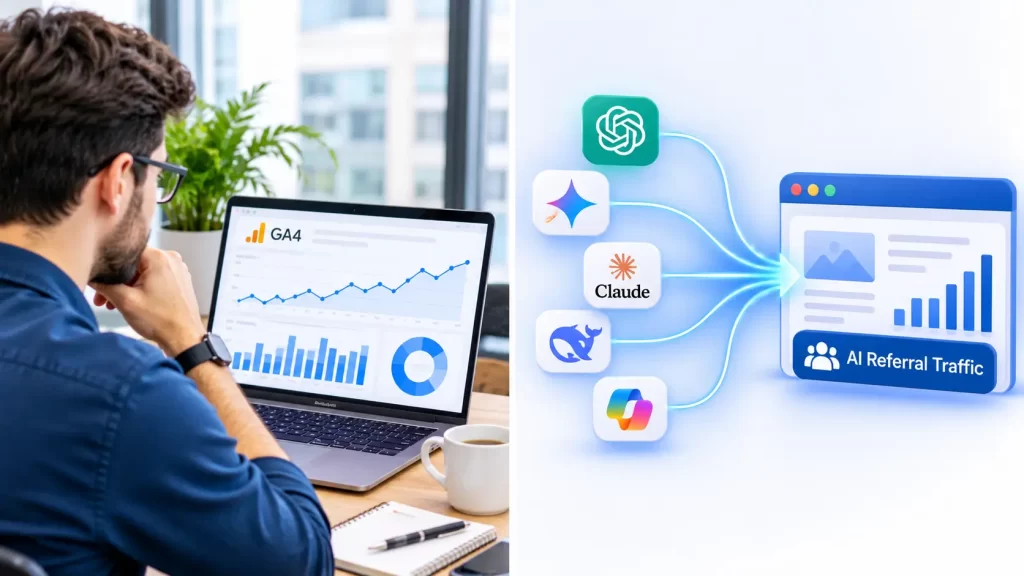
Before they start using search engines, most users start asking AI. Many users may browse your site if their answer was provided by your brand via AI tools. One problem is the default AI traffic tracking by GA4. Without a separate channel, all these traffic sources will be shown as either Referral or Direct.
This article gives step-by-step instructions for setting up tracking for ChatGPT AI traffic in GA4, as well as instructions on how to understand these stats for yourself.
Why Should You Track AI Search Traffic?
There is a major difference between AI search traffic and search engine traffic. With search engines, users do a lot of browsing before arriving at your site to find the information they want. The same traffic behavior does not happen with AI searches because AI users come to your site with a completely fulfilled request, giving them the ability to complete the purchase or be further along in the buying process.
It lets you know:
- Which pages are sent to users by AI
- What kind of traffic behavior AI generates
- Compare the statistics with the traffic generated from other channels
- You are able to prove to your clients/team the ROI of all of your efforts on AI search optimization.
- It helps to identify what AI finds the most trustworthy, or at least which content AI considers to be the most relevant.
Where Does AI Traffic Show Up in GA4 Today?
By default, a visit from chatgpt.com or perplexity.ai is usually grouped under Referral. Some AI visits show as Direct because apps don’t always pass along where the visitor came from. That’s why a dedicated channel helps.
Step 1: Create a Custom Channel Group
- Go to GA4, Admin → Data display → Channel groups.
- Press the button to add a Channel group, and enter the name “Default + AI Traffic.”
- Using GA4 custom channel groups helps to protect the existing default channels.
Step 2: Add an “AI Traffic” Channel With a Regex Rule
To get AI traffic data to populate, create a new channel in your report group named “AI Traffic”. For the rule, choose “Source” and select “matches regex” as the operator. Paste the following regex into the box:
You can easily update the regex as new AI tools become popular. Keep in mind that for the regex to work as expected, all domains listed in the source rule should be in lowercase.
Step 3: Move the AI Channel Above Referral
An easy but crucial step to perform after saving the channel group rule is dragging “AI Traffic” to the very top of your channel group rules. GA4 processes the channel rules from top to bottom. If your Referral channel group is at the top of your ruleset, then Referral will catch your AI traffic, and you won’t see any data for “AI Traffic.”
Step 4: Build a Simple Report
To verify if your AI traffic channel is working properly, navigate to Explore. Click on “Free-form” in the top bar. You’ll need to use your channel groups as a row and add the following metrics: “Sessions”, “Engaged Sessions”, “Engagement Rate”, and “Key Events”. In the dimensions column, add “Landing Page” to see which pages on your site receive traffic from AI.
What Can’t GA4 Show You About AI Traffic?
Finally, do not rely exclusively on the data provided by these channels. Most traffic generated by AI and attributed to “Referral” channels falls under the category of unknown, untraceable traffic. For example:
- A user manually copies the URL of the link and opens the URL in a different browser.
- The mobile application opens the URL without including any reference information.
- The linkless mention of your brand within an AI-generated answer.
How Can You Use This Data?
- Improve AI pages already sending traffic.
- Provide clear responses and FAQs on all key pages and add schema markup
- Segment traffic from AI and evaluate it versus regular organic search
- Identify month-to-month trends versus daily changes
If you want help with setup, tagging, or reporting, our Google Tag Manager and Google Analytics services team can set it up for you. To grow your visibility in AI answers, see our AI SEO services.
Why Choose Xelogic Solutions?
Xelogic Solutions has served 100+ clients with SEO, PPC, Analytics, and Web Development since 2021. As a Google Ads-certified Agency, our team of 30+ professionals thrives on reporting that is easy and transparent.
Frequently Asked Questions:-
Q. Can GA4 detect ChatGPT?
A. Not by default as an independent traffic channel. Usually, these traffic segments are classified under Referral or Direct.
Q. How do old reports fare if I modify channels?
A. Changes to channels within reports and explorations won’t affect the default channel classifications.
Q. Why is the AI traffic data lower than I expect?
A. Most AI traffic is difficult to source. Because of this, a portion of the total traffic isn’t actually shown by GA4.
Want Clear Insight Into Your AI Traffic?
Let our team set up tracking and reporting you can trust. Contact Xelogic Solutions or call +91 991-106-0914.

Radhika Lohmod
I'm Radhika Lohmod, Senior Content Specialist at Xelogic Solutions, and I specialize in creating high-quality content across various domains to help businesses connect with their audience.